How to share a ChatGPT Site
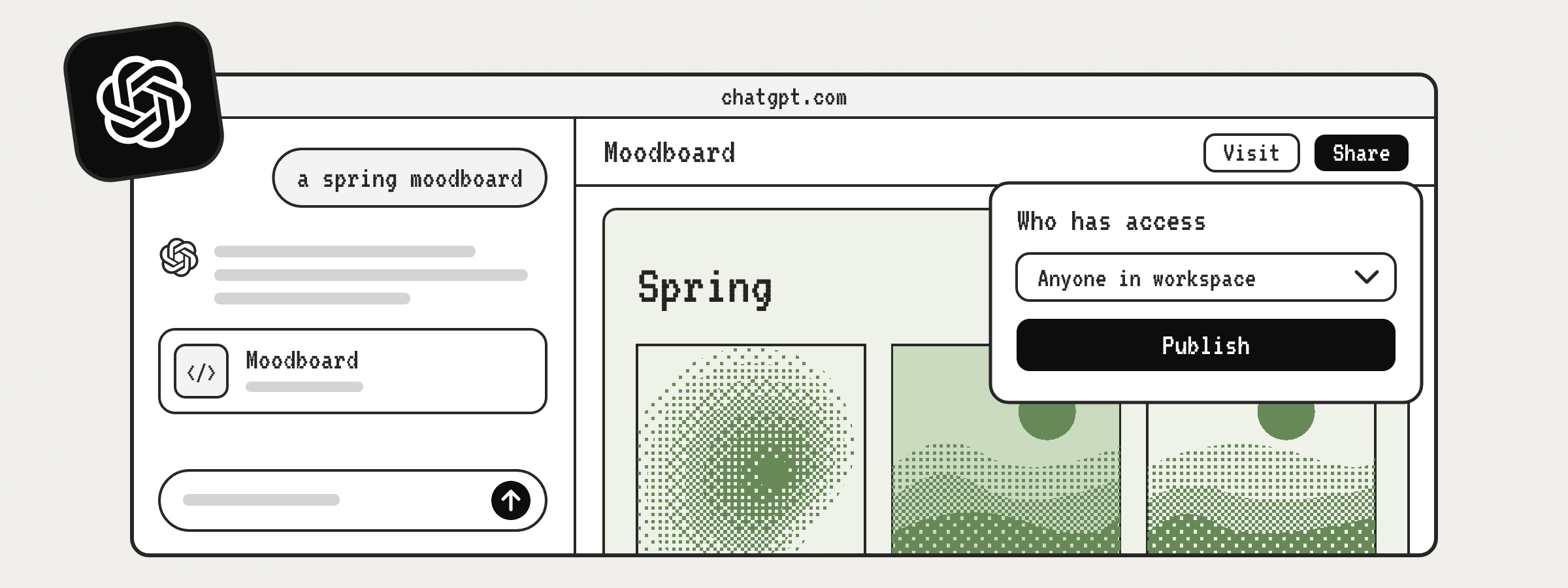
Click Share, choose who has access, then Publish. A new site starts private to you, and who else you can add depends on your plan and your workspace admin.
Checked against OpenAI's docs on 7 November 2026.
Share a site
ChatGPT Sites comes with Plus, Pro, Business and Enterprise, not Free or Go. To share one:
- Open the site in ChatGPT and select Share.
- Under Who has access, choose who can open it.
- Select Publish.
- Use Copy link to send the address.
A new site is limited to you and your workspace admins until you change who has access.
Who can open it
You can share with:
- only you and your workspace admins
- selected people or groups, including named people outside your workspace
- anyone in your workspace, where your plan has one
- anyone on the internet, when public publishing is on
On Enterprise, public publishing is off until an admin turns it on, and admins decide by role who can create and publish sites.
What viewers need
- Public sites open without signing in to ChatGPT.
- Invited people sign in with the ChatGPT account the invite went to. They can use the site, but they don’t join your workspace or take a seat. Invites to people outside your workspace are still rolling out.
- Workspace sites use ChatGPT sign-in, so everyone needs a workspace account.
There’s no password option.
Stop sharing
Change Share settings back to selected people, or just you. Removing someone’s invite doesn’t remove access they have through a public, workspace or group setting. Deleting a site is permanent.
Addresses, domains and versions
A site gets a chatgpt.site address, and renaming it redirects the old one. You can connect a domain you already own, but ChatGPT won’t register one for you, and a custom domain costs credits each month.
Each publish deploys a saved version, and you can restore an earlier one. Restoring brings back the code, not the database or uploaded files.
Hosting is free until 31 December 2026. From 1 January 2027, usage above your plan’s allowance is metered.
Canvas is different
A ChatGPT canvas is shared like a conversation, on every plan, rendered HTML included. That’s a link to the canvas, not a hosted site with its own address and access settings.
When ChatGPT’s sharing isn’t enough
Sites works when your readers are in your workspace or the page can be public. It’s harder for everyone else: invited people need a ChatGPT account, and pages made with Claude or another model can’t live there.
For those pages, ask ChatGPT to publish to ooda instead. ooda hosts static pages, so a site that needs ChatGPT’s database or server code won’t run there. Reports, prototypes and one-off tools will.
Share it beyond ChatGPT with ooda
ooda is a private place to publish what ChatGPT, or any other model, builds. Your team opens it without a ChatGPT seat.
Connect ooda to ChatGPT
In Settings → Apps & Connectors, turn on Developer mode, then create a connector with the address https://api.ooda.run/mcp.
Ask ChatGPT to publish
"Publish this to ooda." It sends the page's files and gives you the link.
Your team opens it
It's private to your team by default. Teammates sign in with Google or an emailed code. Members are free.