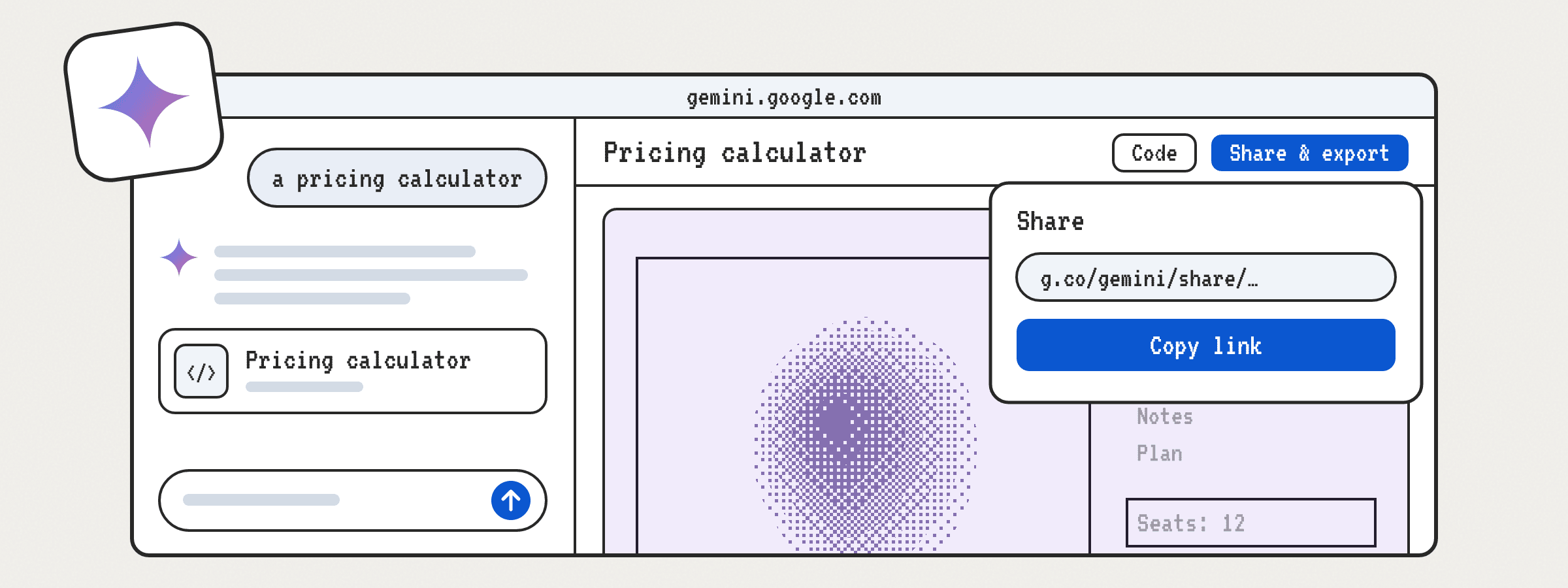
How to share a Gemini Canvas
Click Share & export, then Share, and copy the link. The link is public, and on a work account your admin decides whether you can share at all.
Checked against Google's docs on 7 November 2026.
Share a canvas
On a computer, from the chat with the canvas:
- At the top right of the Canvas panel, click Share & export → Share.
- If it’s an app, review the app info.
- Click Copy link next to the g.co/gemini/share address.
On a phone, tap Share & export, then Share. Shared links only open on gemini.google.com, not in the Gemini app.
Who can open it
The link is public. Anyone who has it can open it, even if you didn’t send it to them, and Google says they don’t need an account. There’s no way to limit a link to your organisation.
The link shows the chat and its canvas as they were when you shared. Later edits don’t appear.
If you share an app, anyone with the link can see and change the app’s data. Apps can save data, share it between the people using them and use Gemini to write text or make images.
People who are 18 or over can click Copy Canvas to carry on editing their own copy.
On a work or school account
Your admin controls sharing for chats and canvases:
- Public links are off by default.
- Sharing through Drive is on by default and follows your Drive settings, so if your organisation blocks sharing outside it, so does Gemini. Only people signed in to Google can open these.
If you don’t see Share, your organisation has turned it off.
Stop sharing
Go to Settings → Your public links, or gemini.google.com/sharing, and click Delete public link. Anyone who opens it then lands on gemini.google.com.
A link also goes when its chat is deleted from your Gemini Apps Activity, including by auto-delete.
Other ways to get it out
From Share & export you can export a doc to Google Docs, slides to Google Slides or a PDF, and code to Colab. For an app, click Code at the top right of the panel to see and copy the code.
When Gemini’s sharing isn’t enough
On a personal account, a canvas link is all or nothing: whoever has it can open it, and edit an app’s data. Work accounts can share through Drive, if the admin allows it. Either way, the page lives on gemini.google.com rather than at its own address.
For a page only your team should open, copy the code and publish it to ooda. ooda hosts static pages, so apps that use Gemini or save data won’t work there. Pages, reports and one-off tools will.
Share it beyond Gemini with ooda
ooda is a private place to publish what Gemini, or any other model, builds. Your team opens it without a Google account.
Copy the code
At the top right of the Canvas panel, click Code. Paste it into a file called index.html in a new folder.
Publish it
In that folder, run ooda publish, or ask your coding agent to publish it to ooda.
Your team opens it
It's private to your team by default. Teammates sign in with Google or an emailed code. Members are free.